
Answered

Access employees with onboarding status

  • December 21, 2021
  • 7 replies
  • 645 views

Hi,

What access rights do I need to give to our IT department and supervisors so that they can see new employees before their hire dates? Our IT department uses some employeeĀ information from Personio to create new users and supervisors need to acces their reports so that the can complete their to-dos.

Thanks in advance!

Best,
EmmaĀ 

Best answer by Marc

HiĀ @Emma Tcheng,

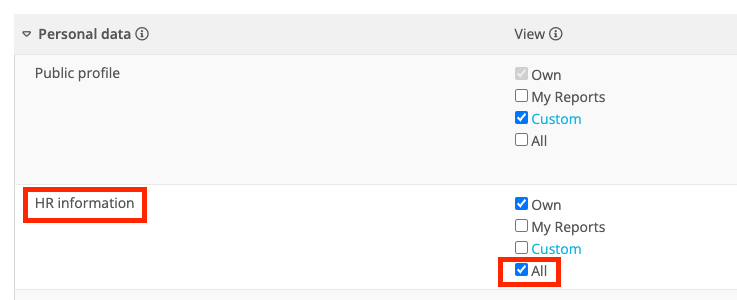
to give your IT department and supervisors access to employees in the status onboarding, they need access to the profile section ā€œHR informationā€.

Please note that these rolesĀ will then see all information that is stored in this section, so make sure they are allowed to see it.Ā 

To give access to the section, navigate to your intended employee roles and enable the view for all/custom/my reports of the HR information section.
After that, the employees are able to filter for employees in the status onboarding in the employee list.

If there are any open questions, feel free to ask.

Best regards
Marc

Ā 

7 replies

Marc
Former Personio Employee
Forum|alt.badge.img+12
  • Former Personio Employee
  • Answer
  • December 21, 2021

HiĀ @Emma Tcheng,

to give your IT department and supervisors access to employees in the status onboarding, they need access to the profile section ā€œHR informationā€.

Please note that these rolesĀ will then see all information that is stored in this section, so make sure they are allowed to see it.Ā 

To give access to the section, navigate to your intended employee roles and enable the view for all/custom/my reports of the HR information section.
After that, the employees are able to filter for employees in the status onboarding in the employee list.

If there are any open questions, feel free to ask.

Best regards
Marc

Ā 


Dino Hadzikadunic
Personio Implementation Manager
Forum|alt.badge.img+1
  • Personio Implementation Manager
  • December 21, 2021

HiĀ @Emma Tcheng,

As Marc mentioned, in order to be able to view employees with the statusĀ Onboarding,Ā onĀ Leave,Ā orĀ Inactive, besides view-all rights for theĀ Public informationĀ section, IT and Supervisor roles will also need viewing rights for theĀ HR informationĀ section.Ā 

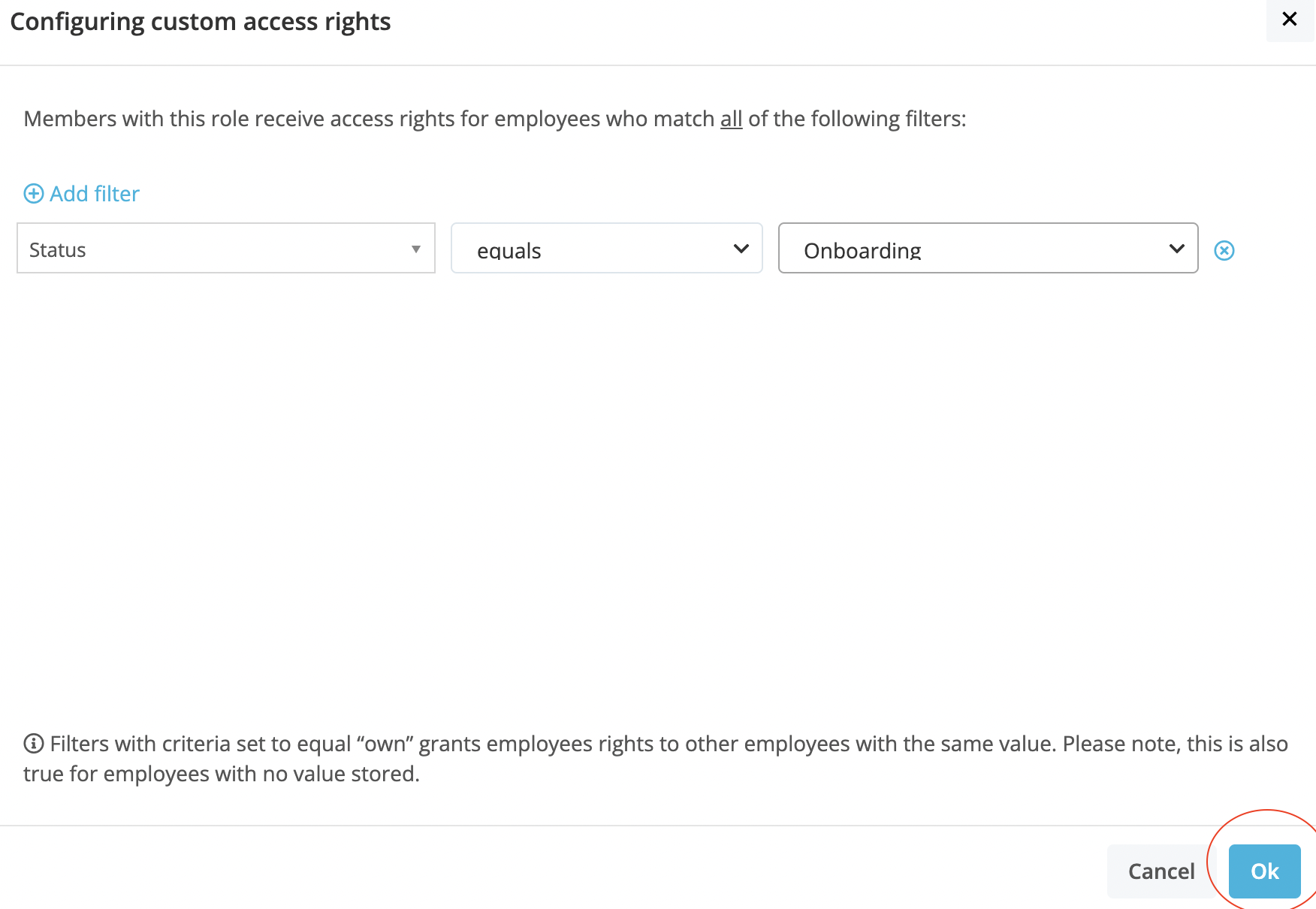
However, in case you don’t want to share sensitive data of all employees with employees added to the IT/Supervisor role, we can use Custom filtersĀ to makeĀ sure they are able to see HR information of employees in the ā€œOnboardingā€ status.

In order to do that, please navigate to Settings > Employee Roles > IT/Supervisor > Access rights > Personal Data > HR information > tick view-custom > set up the filter Status - equals - Onboarding > OK > Save

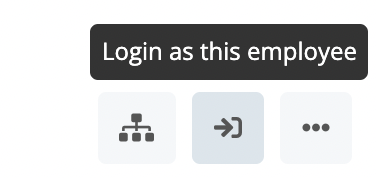
In order to double-check your settings you can log in as an employee (IT/Supervisor role member) and check are you able to see the profile of the employees in status Onboarding. You can do that by simply entering the profile of the employee who is a member of the above-mentioned group(s), and clicking on the "arrow" sign at the top right.Ā 

If you will be able to see the profile of an employee who is in the onboarding phase with the status "Onboarding" you have successfully resolved the problem.

Please let me know if this has worked for you.

I look forward to your reply.

Kind regards,

Dino


  • Author
  • January 4, 2022

Hi @Dino HadzikadunicĀ and @Marc,

Thank you for clearing that up for me! I think we should be fine with Marc’s suggestion, but I’ll keep Dino’s suggestion in mind as well. It might be useful in the future…

However, I noticed that while employees in onboarding are not shown in the employee list or global search, they can be seen in the global calendar. Why is that and is it possible to change it?Ā 

Best,
Emma


JHBEM
Communicator
Forum|alt.badge.img+19
  • Communicator
  • April 4, 2023

Hi Folks,

Thanks for the answers above.

I was really struggling having setup an IT access sub-permissions.

So that IT don’t see all the elements within HR Information - do I need to take it out of HR information and create a secondary HR Information?

Could it be possible to create a permssion that says enable sit of Onboarding - and then use the standard permissions - as I don’t want IT to see the HR Information?
@Dino HadzikadunicĀ / @MarcĀ 


JHBEM
Communicator
Forum|alt.badge.img+19
  • Communicator
  • April 4, 2023

@Emma TchengĀ - I am having the same issue - the users don’t show up.

Did you find out the actual solution?

Ā 

Ā 


JHBEM
Communicator
Forum|alt.badge.img+19
  • Communicator
  • April 4, 2023

@ConorCunninghamĀ - conscious that Emma didn’t get a response (least not publicly) so I’m also stumped.

I’ve followed all the setup instructions but IT cannot see anyone with status of Onboarding.

Equally it’s causing a bit of an issue that this approach appears to be the only way to share this info.
As such we’ve created a supplementary ā€˜HR information’ section - which really is not ideal.

We originally created an IT Information section - so it would be great if we could use that instead with a simple permission setting available to allow certain users to see those with status ā€˜onboarding’

@rorybĀ 


ConorCunningham
Personio Employee
Forum|alt.badge.img+7
  • Former Community Moderator
  • April 4, 2023

Hey @JHBEMĀ 

I am just catching up on the above thread so apologies if there is a doubling up of information. So to be able to view employees withinĀ theĀ OnboardingĀ status, we needĀ to ensureĀ ViewĀ rights are given to theĀ StatusĀ attribute.Ā 

Usually this attribute is place within theĀ HR InformationĀ section, however if you do not want to allow other employees to view the information within this section, then you can create another section and drag and drop theĀ StatusĀ into here.

Ā 

Now because you have set up a new section, you will also need to input theĀ access rightsĀ for this. Please navigate toĀ Settings > Employee roles > Choose the relevant role > Personal data > Scroll down to the new sectionĀ and give View All rights for this section. This will now allow the employees within this role to view employees within the statusĀ Onboarding.

Ā 

Ā 

Please ensure that you have selected theĀ StatusĀ filter forĀ OnboardingĀ whenever you are within theĀ Employee List.Ā For example you can add theĀ StatusĀ option to yourĀ Employee listĀ through the table columns by clicking on the three dots icon to the right hand side.

If I can be of any further assistance, please let me know.

Best,

Conor